Posts

Showing posts with the label Development

Building a PowerShell cmdlet using C# - Part 4: Packaging the Cmdlet

Image
This is the fourth and last article of the series on how to build a PowerShell cmdlet. On the previous articles we created a simple cmdlet, troubleshooted the code and took a quick tour on the output streams. Although you can import the dll built by Visual Studio directly as a module, this is not the best approach, since you won't be able to publish it, provide help for your cmdlets and many other features provided by PowerShell modules. To create a module we'll start by creating a folder with the same name of the module. This is the folder that is going to hold all the module files. We'll call this module DemoCmdlet, since this is the name of the Visual Studio project and the dll produced. All modules require a module manifest so let's create one with the New-ModuleManifest cmdlet: PS C:\DemoCmdlet> New-ModuleManifest -Path DemoCmdlet.psd1 PS C:\DemoCmdlet> ls     Directory: C:\Users\cpolydorou\OneDrive\tmp\Blog\DemoCmdlet Mode   LastWriteTime L...
Building a PowerShell cmdlet using C# - Part 3: Using the Output Streams

Image
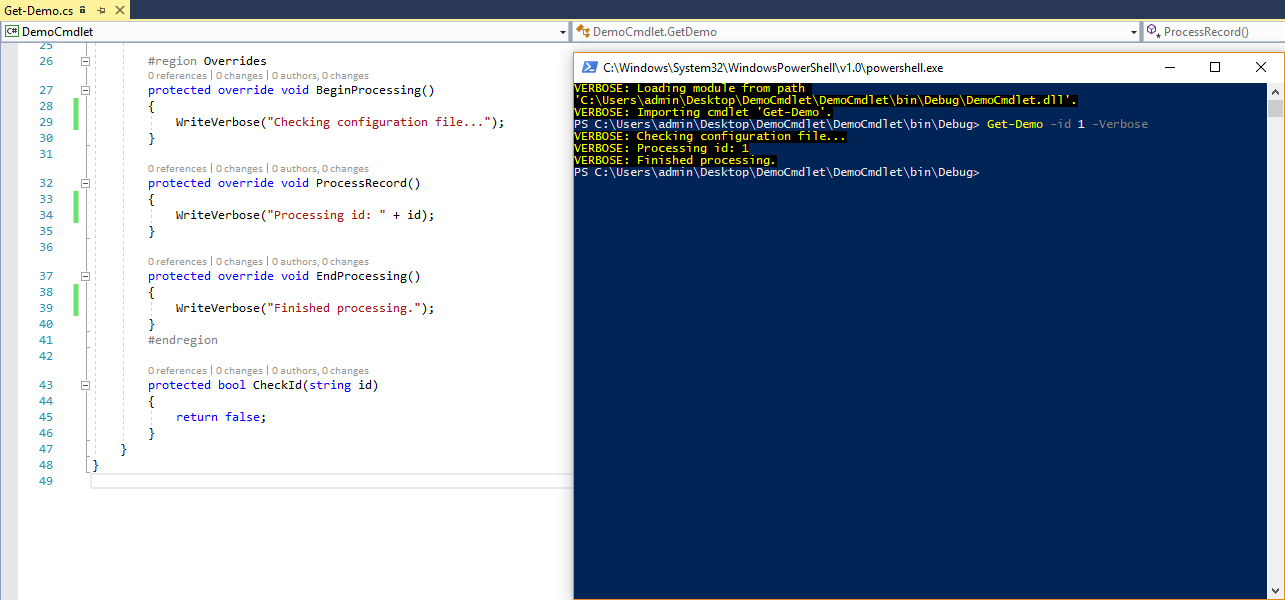
Now that we've seen how to setup the code base for a cmdlet and how to debug it, let's take a look on how it will interact with the world via the various output streams. Verbose Output - WriteVerbose() One of the most useful functions of every cmdlet. Provides detailed information about the execution of the command. Debug Output - WriteDebug() The latest versions of PowerShell give the ability to debug to the end users. The -Debug  parameter along with the WriteDebug  method, pause the execution at specific points so that the end user can debug it. Warning Output - WriteWarning() It goes without saying that if any issues arise during the execution of the cmdlet, those should be reported to the user. For minor issues that do not have an impact on the result of the command, use the WriteWarning method. Errors - WriteError() However, when there are issues that do have an impact on the result, we have to inform the user about them. Things get a litt...

Building a PowerShell cmdlet using C# - Part 2: Debugging

Image
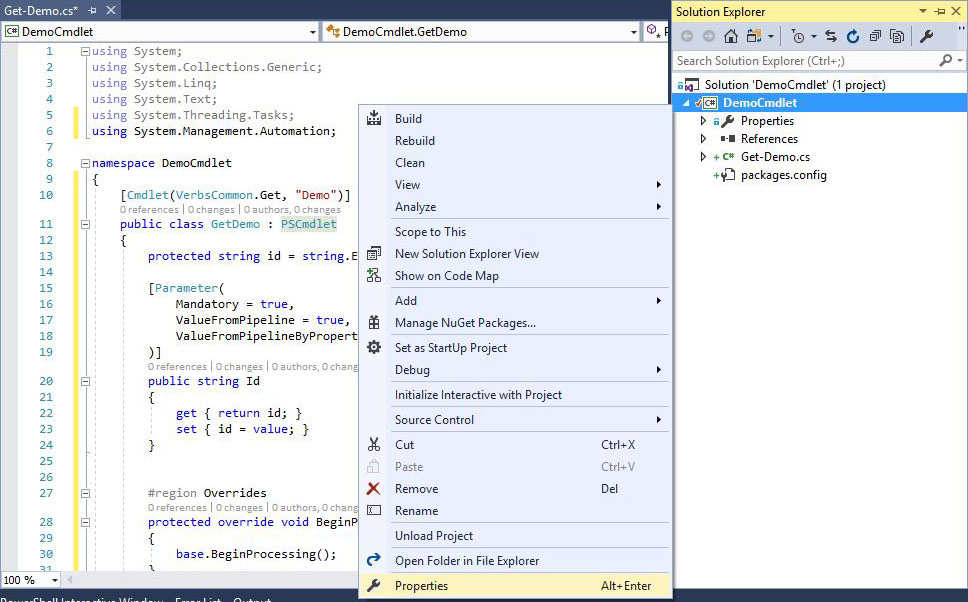
On the previous article of the series, we created a Visual Studio project for a cmdlet and added the base code. This article is going to be about debugging the code, an ability that will greatly reduce the time taken to troubleshoot. Right click your project and select "Properties". On the properties tab, click "Debug" to go to debug settings. Here we are gong to select the "Start external program" option and browse to the powershell executable located at "C:\Windows\System32\WindowsPowerShell\v1.0\powershell.exe". This way, when we start the debugger, a PowerShell window will start. We also want our module to be loaded to that PowerShell host so fill the following in the "Command line arguments" box: -noexit -command "&{ import-module .\DemoCmdlet.dll -verbose}" Replace the name of the dll with the one created for your project. You can find it by browsing to the bin/Debug folder in your project. When you h...

Building a PowerShell cmdlet using C# - Part 1: Basic Code and Requirements

Image
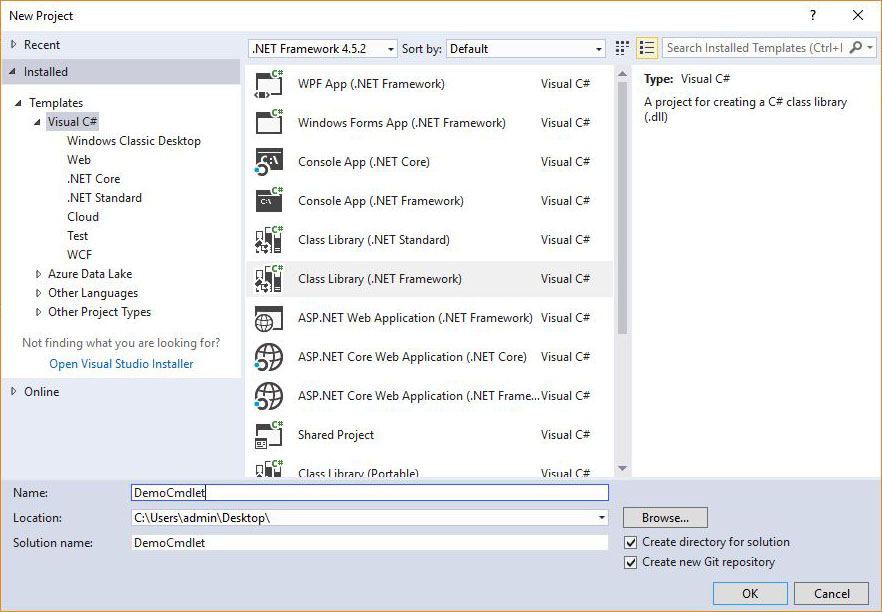
As PowerShell evolved, it gave administrators more are more options when creating functions. The latest addition in PowerShell 5 was classes which along with the ability to use .NET classes allows us to build functions for even the most complicated tasks. The use of classes and .NET objects however is much easier in C# and the fact that the code is faster and strongly typed makes C# a better choice when building complicated functions. In this article, we are going to create a cmdlet using Visual Studio. Let's get started! Fire up Visual Studio and create a Class Library project: When the project is created, it will contain a class file that is going to hold the code for our cmdlet. Before starting to write the code, we have to add a package that will provide all the necessary tools to create the cmdlet. Right click the solution in the Solution Explorer and select "Manage NuGet Packages for Solution". When the package manager tab has opened, click "...