Posts

Showing posts with the label Exchange

Exchange Request Tracing

Image
I came across a very strange Exchange behavior the other day while troubleshooting a full access permission that was not working as expected. Although a user had been granted the full mailbox permission on a shared mailbox, when he tried to open it using OWA, he got an HTTP Error 500 message and the request failed. We'll start troubleshooting with investigating the front end IIS log files. After all, that is the first step of the request processing. Using the user's UserPrincipalName, I've managed to find the error in the log: As you can see, the HTML error code is "500" that indicates an internal server error similar to the one that the user encountered. This file however does not provide much information about the cause of the error so we'll take a look on the backend as well. After each request reaches the front end Exchange layer, it is proxied to the back end but the destination server may be other that the front end server that receivced i...
Updating Exchange Server Certificates

Microsoft Exchange is one of the applications that's installed on almost every company's IT infrastructure and as all applications should, it uses SSL to secure network communications. SSL uses certificates and sooner or later they all expire. Below is the process I usually follow when updating the certificates on multiple servers. We'll start by creating a variable that will hold the thumbprint of the new certificate: $newCertificateThumbprint = "3A5F93553E8346618131DA97CAE6E3962C266608" Then we are going to copy the pfx file to all the servers: $servers = Get-MailboxServer | % Name | Sort-Object $servers | %{ $destination = '\\' + $_ + '\c$\Temp\' Copy-Item -Path "C:\Temp\Cert\Certificate2019.pfx" -Destination $destination -Verbose } Now that the pfx is available on all servers, we are going to import it to the local computer certificate store using the below command: Invoke-Comman...

How to Configure Message Forwarding on a Mailbox Level

Image
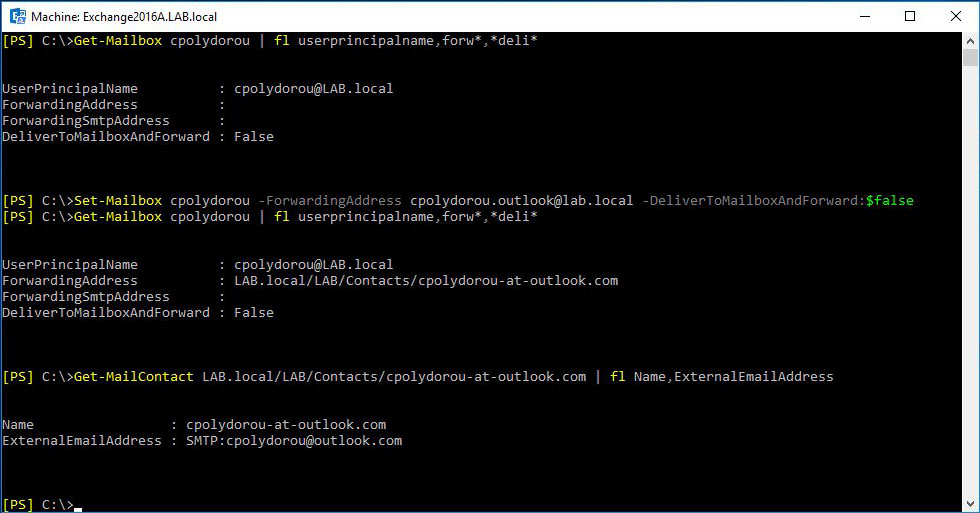
The Set-Mailbox cmdlet has two parameters to configure forwarding for a mailbox: ForwardingAddress and ForwardingSmtpAddress. Those two parameters serve the same puspose but in two different ways. There is also a third parameter called DeliverToMailboxAndForward that when set will leave a copy of the message on the mailbox. The "ForwardingAddress" accepts RecipientIdParameter input which means that you have to use the identity of an existing object on your organization such as another mailbox or a mail contact. The "ForwardingSmtpAddress" accepts input in a proxy address format such as plain old email addresses. Although this is pretty straight forward, there's a catch you need to be aware of. This will only work if the remote domain of the recipient is configured to allow message forwarding. Let me elaborate. There's a thing on Exchange, called Remote Domains . Those are used in order to define settings for the communication between your Exchange ser...

CPolydorou.Exchange v2.8.1

Image
Hi, its Chris and I have updates on my Microsoft Exchange module to share! A new function is added to version 2.8.1 , named "Copy-RecipientAddress". This function copies proxy addresses from one object to another. This is a very common scenario when synchronizing recipients between directories since ambiguous objects may be created. Usually, a mail contact is created by the synchronization service that has the smtp address of an existing recipient. Removing the contact will resolve the issue - provided that the object coming from the remote organization will be joined on the next synchronization operation, but if the contact has been available on the GAL for a while, users may have sent messages to this contact. If this is the case, outlook keeps a copy of the Legacy-Exchange-DN address of the contact in it's cache and when the user will try to send a message to the contact you've removed, the message will not be delivered. Enter Copy-RecipientAddress! If you co...

Exchange Mailbox Database Log Copy and Replay Monitoring

The design of the latest versions of On Premises Exchange server has been more and more close to the Cloud version. One of the major changes was the introduction of the Database Availability Groups, that are similar to the SQL server availability groups in concept and allow us to have more than one copies of a mailbox database. This increases the availability of the mailbox service but introduces cost for the required storage. Although storage is cheap these days, there's no need to invest much in it for Exchange since the system will recover from a failed disk (always talking about the volumes holding the database files). However, you should always plan the hardware and system requirements using the Exchange Requirements Calculator. A hardware, software or network event may lead to missed logs between the database copies and result in copy and/or replay queue length. Depending on the time taken to resolve the issue and restore the connectivity, you may have to resume the m...

Configuring a Certificate on Exchange Receive Connector

Today's article is about configuring Exchange receive connectors with specific certificates. Out of the box, Exchange uses self signed certificates to provide TLS secured mail flow. This will definitely be an issue if you expose the SMTP protocol to client computers since they won't trust the certificate. In this article we are going to configure a certificate that was issued by a third part authority to the Client Frontend receive connector. We'll start with getting the thumbprint of the certificate using the Get-ExchangeCertificate cmdlet: [PS] C:\> Get-ExchangeCertificate Thumbprint                               Subject ----------                               ------- 241B864DC82C664FECBA18B8D54987AAFB65B4C2 CN=*.lab.com, ... D4D210886B34E690191A1F008C78FDD0E7325DD4 CN=Exchange2013A 960171662EB26116...

Get Exchange Mailbox Quota Status using PowerShell

Back in the old days of Microsoft Exchange, when quota was applied to a mailbox we had a way to check the status of the quota using the "Get-MailboxStatistics" cmdlet and the property "StorageLimitStatus". On the newer versions of Exchange, this property does not contain a value since it has an impact on the performance against Active Directory (read more here ). In order to overcome this issue - and since I'm often checking for the quota status - I've decided to create a PowerShell function. The function is called "Get-MailboxQuotaStatus" and it's available with my Exchange module since version 2.4.1 . What it actually does is to check if the mailbox follows the database quotas or it's own and then compare the quota values against the size of the mailbox. The objects that this function returns are consisted of the mailbox object that is returned from the "Get-Mailbox" cmdlet and the status of the quota. The possible values...

Exchange Application Impersonation Test

Exchange Application Impersonation. More and more applications are starting to take advantage of this great feature of Exchange and you as the Exchange administrator have to assign the role. Wouldn't be nice if you had a way to verify that the role has been successfully assigned? The newest version of my Exchange module - that is 2.2.1 - includes the "Test-ExchangeImpersonation" cmdlet which will allow you to test the application impersonation role assignment. Before diving into the examples, a few words on the impersonation. Impersonation is used when we need to give access to an account in order to perform actions on mailboxes. When the application impersonation role is assigned to a principal, that principal can act on the mailbox and perform many actions such as reading and sending mail, managing calendar and contacts, etc. On the examples below, the principal with the impersonation permission is test.impersonation and the mailbox that is going to be impersonat...

Exchange Server Mailbox Auto Mapping Cmdlets

A new version of my Exchange module has been published on the PowerShell Gallery. This new version contains cmdlets to Get, Enable and Disable the mailbox auto mapping feature for a user on a shared mailbox. A few words about auto mapping. When an exchange administrator grants permissions on a mailbox (doesn't matter if the mailbox is a user mailbox or a shared mailbox) to another recipient, the shared mailbox will be automatically added to the users Outlook client. This is the mailbox auto mapping feature which is also enabled by default. When granting permission on a user you can disable the auto mapping by using the "-AutoMapping:$false" switch with the "Add-MailboxPermission" cmdlet, but what if the permission is already granted? Of course you could remove and re-add the permission with the switch I just mentioned but let's see a more elegant way of configuring it! When a user is granted permission on another mailbox - let's call it shared mail...

Changing the Exchange Management Shell window title

Although there are advantages in working with Powershell ISE, there may be times when Powershell is a better approach. Take Exchange for example. You may use the exchange commands by connecting to Exchange and using implicit remoting or use the remoteexchange script. For those of us that are using the Exchange Management Shell, I believe that it would be helpful to be able to update the title of the window in order to reflect the use of that particular prompt. Yesterday I put together a function that allows us to set the title of the window. This function is part of my CPolydorou.Exchange module but since that module has not yet been uploaded to the Powershell Gallery, here's the code: Function Rename-ExchangeShell { <# .SYNOPSIS Set the title on the Exchange Shell window. .DESCRIPTION Set the title on the Exchange Shell window. .PARAMETER Title The new title. .EXAMPLE Rename-ExchangeShell -Title "Mailbox Query"...

Exchange Server: Active Directory Attributes Behind Mail Flow

Today I would like to talk a bit about the Active Directory attributes related with mail flow on Exchange server. There are five settings on an exchange recipient that control mail flow (represented by the name of the Powershell parameter of the relative cmdlets): AcceptMessagesOnlyFrom AcceptMessagesOnlyFromDLMembers RejectMessagesFrom RejectMessagesFromDLMembers RequireAllSendersAreAuthenticated Let's examine them one by one! AcceptMessagesOnlyFrom When this is set, the recipient will only be able to receive messages from the specified recipients. Corresponding AD attribute: "authOrig". AcceptMessagesOnlyFromDLMembers Same as above but for the members of the specified DLs. The relative AD attribute is "dLMemSubmitPerms". RejectMessagesFrom When this is set, messages from the specified recipients will be rejected. The AD attribute behind this setting is "unauthOrig". RejectMessagesFromDLMembers Same as above but for the members o...