Posts

Showing posts with the label Advanced Analytics

Querying OMS for Events

Image
On the previous article of the series, we queried the OMS workspace for performance statistics and created graphs to present the data. On this article we are going to query for events on the windows logs. The below query will return all the servers that were shut down unexpectedly during the last day: The "project" function allows us to pick the columns on the result. Role fail over in failover clusters is another thing I usually monitor: Since the events are written in the Microsoft-Windows-FailoverClustering/Operational log, we need to add it to the windows event logs that OMS is collecting first. You can also monitor trends in application events: As show in the above chart, there number of error events in the application log of one of my Exchange servers increased significantly a few days ago. Data can also be rendered in multiple dimensions. The below graph shows the number of the Error, Warning, Information and Success events for the last day, per...

Verify the Agent Connectivity to OMS Workspace

Image
Now that we have configured our first agent to send data to the OMS workspace, how do we know that everything is working as it should? The first place to check the status of the agent is the agent itself. Open the Control Panel and search for the Microsoft Monitoring Agent. If you switch to the Azure Log Analytics tab, the status of the agent is shown as following: In case you need more details about the status of the agent and it's operations, events are written to the Operations Manager event log: The last way to check the connectivity of an agent to the workspace is to query the heartbeat logs on the workspace itself. The agents send heartbeat messages to the workspace and those messages are available to query. Here we see that the OMSGateway.lab.local computer has sent a heartbeat message on 2018-03-22 at 16:00 GTM. The IP address of the computer is also available along with the type and version of operating system and agent and other useful information. Th...

Install and Configure the OMS Windows Agent

Image
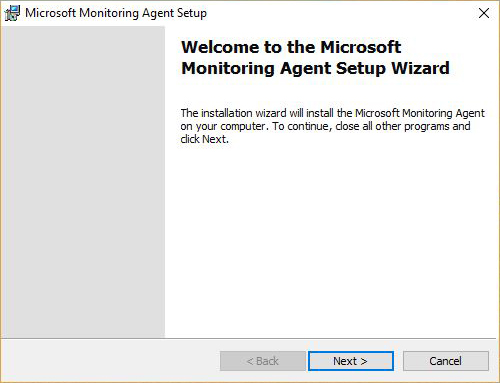
On the last article of the Azure OMS series, we configured OMS to collect the log entries from the Application and System logs and the values for a few Performance Counters. It's time to setup the first agent to send data to the workspace! All we need is the setup file that is available on the Azure portal, at the Advanced Settings blade of the OMS workspace. The first step of the agent installation would be to right click the file and then run it as administrator. After the UAC confirmation, the welcome screen should appear. Click Next to get to the Software License Terms and agree after reading them. The next screen will be installation folder selection. In most cases, the default location is going to be fine. Next, we have to configure the agent to connect to OMS by selecting the second checkbox. If you would like to also connect to SCOM, tick the third checkbox. On the next step, we have to specify the OMS workspace to connect to by using the Workspace I...