Posts

Showing posts with the label Log

Generating Alerts On OMS
Image
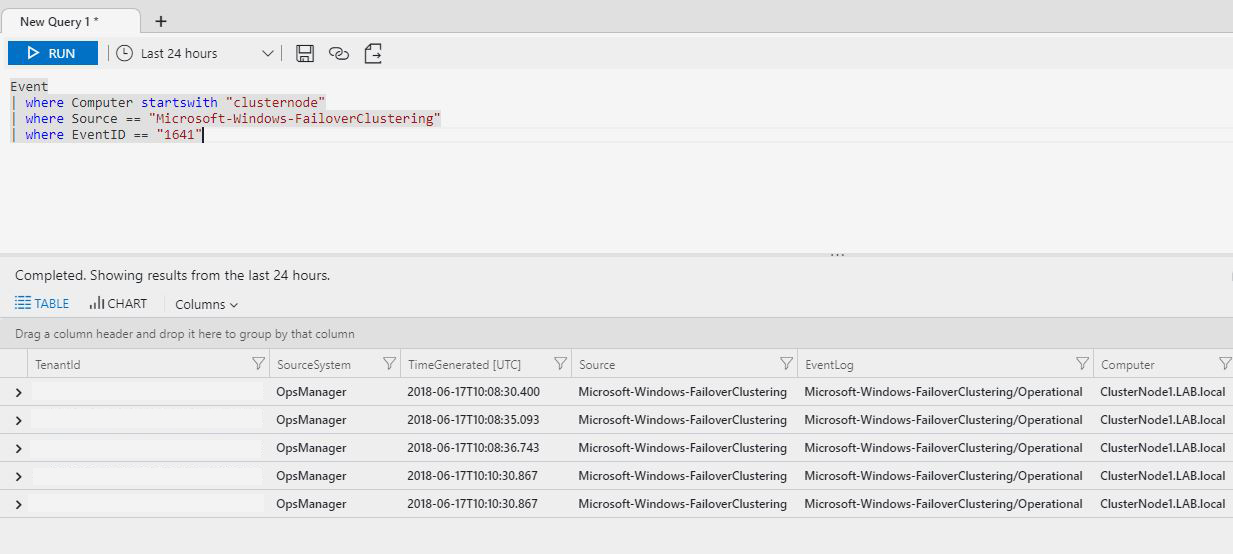
On the previous articles about Microsoft OMS, we've configured event and log collection from various systems and we've queried the workspace for information. We have the information, wouldn't it be great if we could also act on it? The Operations Management Suite has a feature named "Alerts" that provides this functionality. Creating alerts is a straight forward and only takes a few minutes. To illustrate the process, we are going to configure an alert for a Windows Server Failover Cluster that hosts the File Server role. When a cluster resource is moving to another node of the cluster, an event with id 1641 is generated under the source "FaileoverClustering" of the log "Microsoft-Windows-FailoverClustering/Operational". To create the alert, we are going to need a query that returns the above events: Let's create the alert. From the main OMS blade, select "Alerts" and then "Create New Rule": This will bri...
Collecting IIS log files on OMS

Image
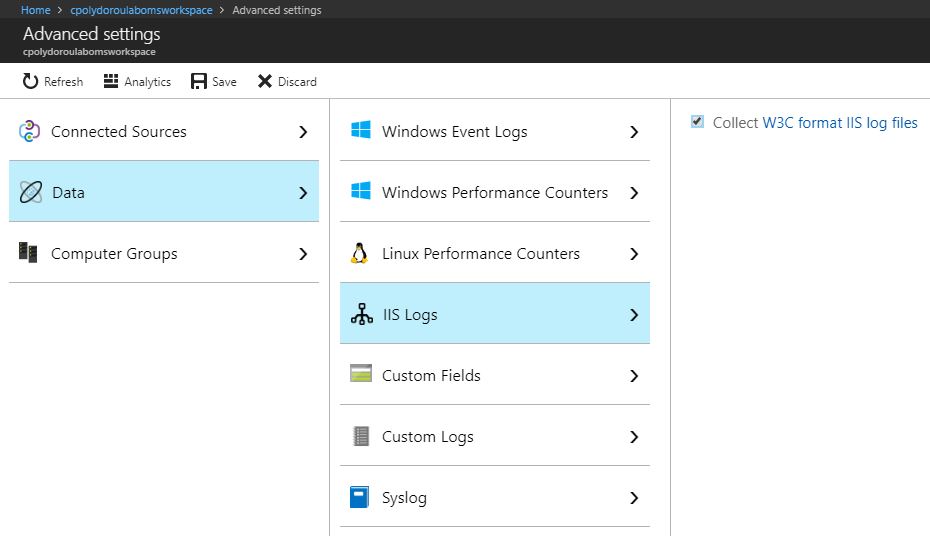
Moving on to the next article about Azure OMS, we'll start collecting IIS log files in order to be able to examine the requests and report on website usage. In order to start collecting IIS logs, we first have to enable the feature on the workspace. Don't forget to click save after enabling the setting. Give it some time and the agents should pickup the change and start uploading the logs. Moving on to the query part, I'm going to use my Exchange servers again, since they have websites that I would like to get statistics for. First, we'll summarize the requests per website: Then, we will extract statistics regarding the user agents used: Finally, we'll extract the number of requests on each Exchange virtual directory: I should mention here that the IIS log files have to be stored in W3C format and custom fields or IIS Advanced Logging are not supported at this time. Have fun! Related articles      Introduction to Azure Advanced Analyti...

Searching IIS logs with Search-IISWebsiteLog

Today I'd like to talk about the Search-IISSiteLog cmdlet that's part of the CPolydorou.IIS module. This cmdlet can be used in order to search text base log files, especially IIS website logs. Let's dive right in and search the Exchange IIS logs for the requests of a specific user! We'll start by getting the sites on an Exchange 2013 server: PS C:\> Get-Website Name             ID State   Physical Path ----             -- -----   ------------- Default Web Site 1  Started %SystemDrive%\inetpub\wwwroot Exchange Back En 2  Started C:\inetpub\wwwroot Since we want to search for a user's requests, we'll use the "Default Web Site" website. Our exchange servers are named "exchange2013a" and "exchange2013b". The Search-IISSiteLog command would be: Search-IISSiteLog -WebSite "Default Web Site" `            ...

The CPolydorou.IIS PowerShell module!

Recently I've published another of my PowerShell modules, this time it's CPolydorou.IIS. This module contains function that have been proven very helpful when I was dealing with IIS web servers and websites. Let's take a quick look on the functions in this module! The first three functions are related to application pools and more particularly getting the application pools, restarting them and getting their worker processes: Get-IISApplicationPool Get the application pools on the local or remote servers. Restart-IISApplicationPool Restart one or more application pools on the local or remote server Get-IISApplicationPoolWorkerProcesses Get the worker process of an application pool The other two functions are: Get-WebConnections Get the connections to a web site Search-IISSiteLog Search the IIS logs (or any other log file in text format) for one or multiple servers in parallel Although there are examples provided in the module help, I will provide more d...

LogArchiving script: Updates on version 1.0.6

Hello fellow administrators, The latest version of my LogArchiving script (1.0.6) that has just been published contains a new feature where the result of the each task can be embedded in the subject of the email report. This is very helpful in case you have lots of servers and you need to check the result with a quick look or a rule on the messages. A new property named "EmailSubjectResult" has been added to each task in the configuration file. This can be either "append", "prepend" or empty. Using "append" will add the result of the task to the end of subject, "prepend" will add the result to the begginng of the subject whilst leaving this field empty will not alter the subject of the message at all. Please note that if you decide to update your scripts to this version, you need to update the configuration files as well!!! Also, do not solely rely on the messages for monitoring your tasks. The script also writes to the appl...

NetScaler Management Login Log

I recently visited a client and started doing some health checks on the NetScaler pair they're using. Among other messages I got a message that a user was trying to log in to the appliances using SSH. The message on the Command Center did not provide any information about the source of the attemts, only the username used. Since these attempts were about fine a day and at certain times of the day, I realized that it should be some kind of monitoring tool. But I had to get the IP of the source in order to investigate further... The first few searches did not yell any results since they were all related to the AAA servers that could be set up on the NetScaler. I then decided to search within the BSD system logs and put the NetScaler logs aside. You can find the login attempts, for the NetScaler system, by reviewing the log file located at /var/log/auth.log I found the IP of the source there and it was a monitoring tool!

PowerShell Log

I'm starting to have many jobs that run powershell scripts on some servers so I decided to update the scripts in order to write to the event logs on the servers. I decided to create my own log in order to be free to do anything I want with it and I called it "Powershell Jobs". I also added a source for every job. All that with the New-EventLog command. I then added error handling code to the scripts using the $error.Count value in order to check if the last command had any errors and the $error[0] for the error message. I then write to the above log using the Write-EventLog command. That way I know what happened for every job and I can get it on Splunk (or any other syslog server) too. One more thing, depending on the result of a command I write error or information events and I'm using a seperate ID for every event type.