Posts

Showing posts with the label Product Key

Updating the product key and activating a Windows Server installation
Image
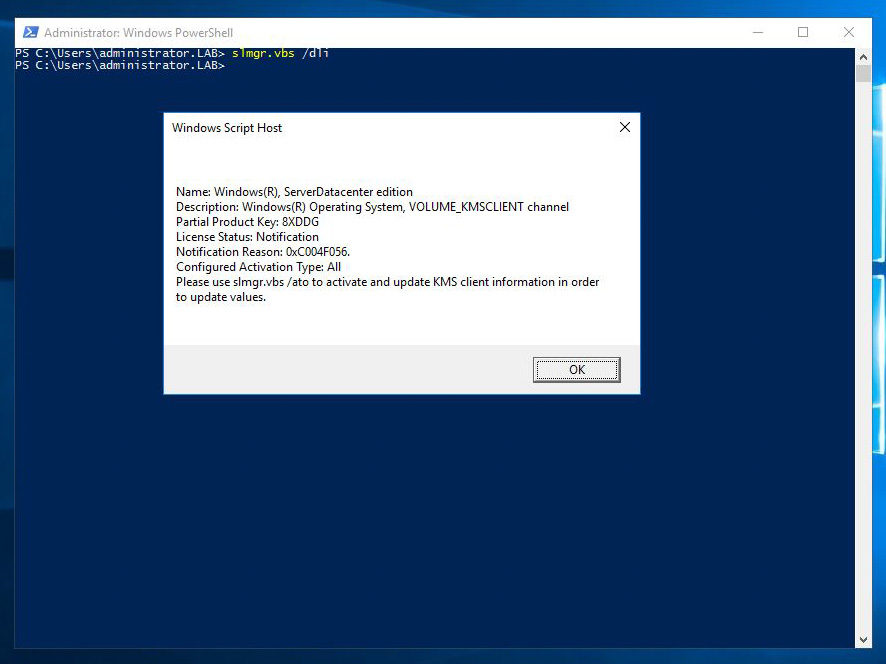
A very common task when installing a Windows operating system is to activate the license, and update the product key if required. Although this is a very simple task using the control panel, it can be tricky the command line is all you've got, just like on server core installations. The slmgr script can provide information about the license status of a server, update the product key and activate the license. Let's take a look at the parameters of the script. To get a short description of the licensing status, use the "/dli" parameter: If you need a more detailed status, you can use the "/dlv" parameter: The "/xpr" parameter displays the version of the server and the status of the activation: The "/ipk" parameter allows us to change the product key of the server: After changing the product key, we have to activate the license using the "/ato" parameter: After updating the product key...

Windows Server 2012 R2 Core Setup

In this article I will show you the commands I usually use in order to configure a newly set up Windows Server 2012 R2 system. I know there are may other ways to do this like sconfig or corefig but I prefer native Powershell command. Let's start by renaming the computer with the command below: Rename-Computer -NewName Server1 A small note here, the name of the computer will not change until you reboot. If you want to reboot right after the cmdlet above completes just add the -Restart parameter. Next, I'm going to set the product key: slmgr -ipk productkeystring After the step above I like to configure the network settings. Let's start with renaming the network adapters. That way it is easier to tell which adapter is connected to which network: Rename-NetAdapter -NewName LAB_Data After renaming the adapters, it's time to assign some IP addresses! New-NetIPAddress -IPAddress 10.0.0.12 ` -InterfaceAlias LAB_Data ` -DefaultGateway 10.0.0.1 ` ...