Posts

Showing posts with the label Linux

Azure Instance Metadata Service

Image
The Azure Instance Metadata service is an Azure service that provides more information about Azure Virtual Machines that is invoked from the machine itself. This way, the administrators of the machine - that in most cases have no access to the Azure Portal - are able to get more information and troubleshoot potential issues. Let's use a linux virtual machine to get information from the metadata service! To get the data from the service, a simple HTTP call is all that is required. However, there are a couple of things to keep in mind. First, although we are using Automatic Private IP Addressing, we have to include the "Metadata" header so that the service won't mistake our call for a call that may be the result of a redirection. Second, the version of the API to use must be provided in every request. To get the allowed values, simply call the service without the "api-version" parameter and it should return a list of values: curl -H Metadata:true ...
Install and Configure the OMS Linux Agent

Image
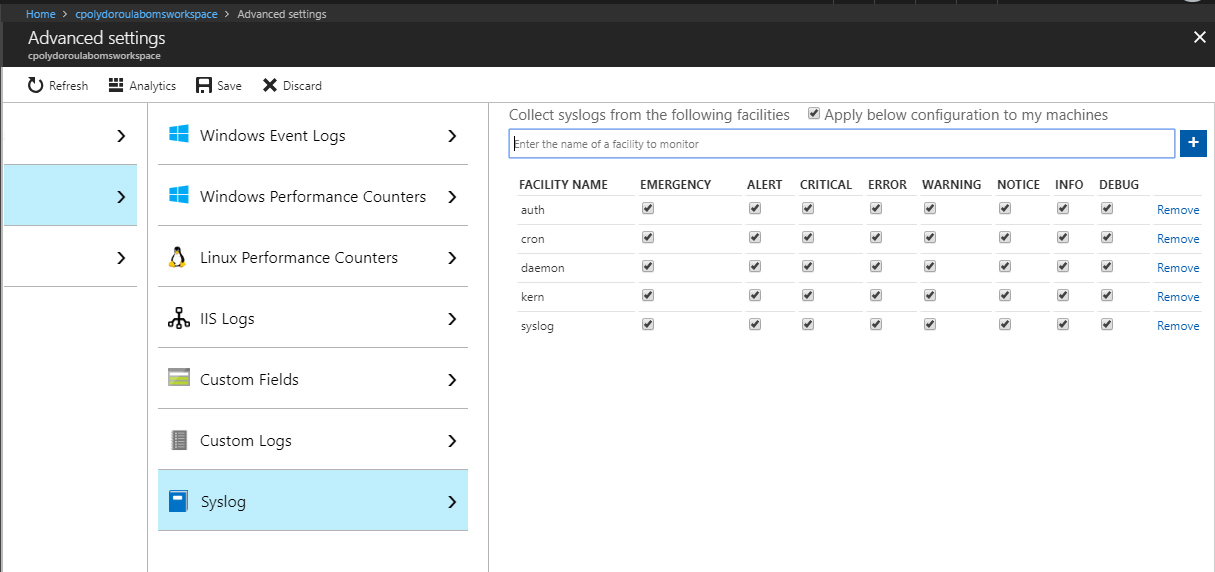
Welcome to another article of the Azure OMS series. This time we are going to configure the OMS workspace for syslog message and linux performance counter collection and then install the OMS agent on a linux machine. Before we start configuring the syslog machines, we have to enable syslog log collection on the OMS Workspace. Go to the "Data" blade of the "Advanced Settings" and select the "Syslog" option. There, you should enable the "Apply below configuration to my machines" option" and then add the syslog facilities to collect messages from. Since we're installing the agent on a linux machine, why not enable the collection of performance counters as well? Go to the "Linux Performance Counters" option of the "Data" blade and enable the "Apply below configuration to my machines" option. Then, add the performance counters to collect. Don't forget to click the save button to save the configura...

File Check with MD5 Hash Using Linux

There are many times that you need to be sure that a file you downloaded from the internet or copied from a location is the same as the original. There are many tools that can help you with that but my favorite is md5sum (and md5deep when it comes to comparing directories). The usage is very simple. The command md5sum FILE will show you the hash for the file and the file name. So the only thing you have to do is get the sum of the original file, the sum of your file and compare them. If they are the same, your file is not corrupted or tampered with. Comparing the hashes your self may not be very easy but there is a way to do it using a hash file. Simply save the result of the above command to a file, like md5sum FILE > hashfile.md5 and then use the option -c to compare the hash of your file to the hash in the hashfile. I always use relative paths because that way you can export the hash of the file to a hash file that is on the same directory with the original file for exam...