Posts

Showing posts with the label Azure CLI

Running Azure CLI in WSL Ubuntu

Image
Microsoft's Windows Subsystem for Linux is starting to gain a lot of my respect lately, not only because I can run my docker container engine on it, but due to the fact that the most popular Linux distributions are also available as images to be imported.  As you can imagine, having a Linux environment as an app within Windows can be very helpful. Especially when the drives of the system are also available from within the distribution! One of the most common problems I run into and I've managed to solve using WSL is running bash scripts for Azure CLI. In the majority of the cases, I use VS Code and the remote container extension to deploy resources using Azure CLI, but there are times I want to test different versions of it, including beta releases. The solution? Separate instances of Ubuntu on WSL! Below are the steps to import Ubuntu and then install Azure CLI. First, we need to add a new Ubuntu instance to WSL. The Ubuntu cloud images are published on the Ubuntu website  an...
How to deploy Bicep templates using Azure DevOps Pipelines

Image
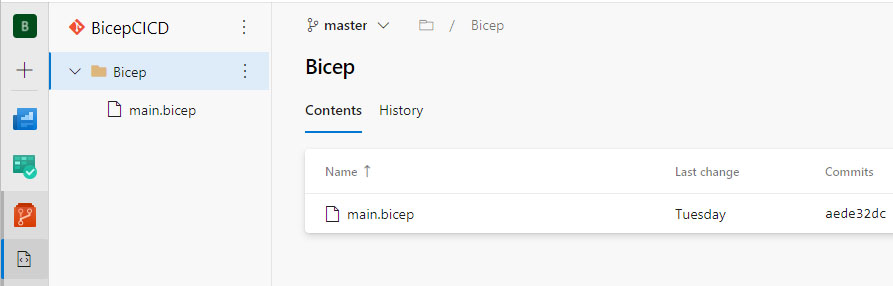
In this article, I'm going to walk you through submitting Azure Deployments using Bicep files from Azure DevOps. Unfortunately, up until now, there is no official task for this need, so we are going to use Azure CLI instead. We'll start with creating a new pipeline, so open your project in Azure DevOps, switch to the Pipelines view, and hit the new pipeline button. We're going to use the classic edition for this demo, so go for the Use the classic editor option at the bottom. The first step of a build pipeline is to select the source that contains your code. For this, I've created a Git repository in the same project that contains a bicep file and looks like this: By default, the source repository is going to be set to Azure DevOps, which is fine for our case: Moving on to the next step, we're presented with some template options for the pipeline. We'll start with an empty pipeline that we'll build ourselves so click the Empty Job option. The next screen i...