Posts

Showing posts with the label Performance

Install and Configure the OMS Linux Agent
Image
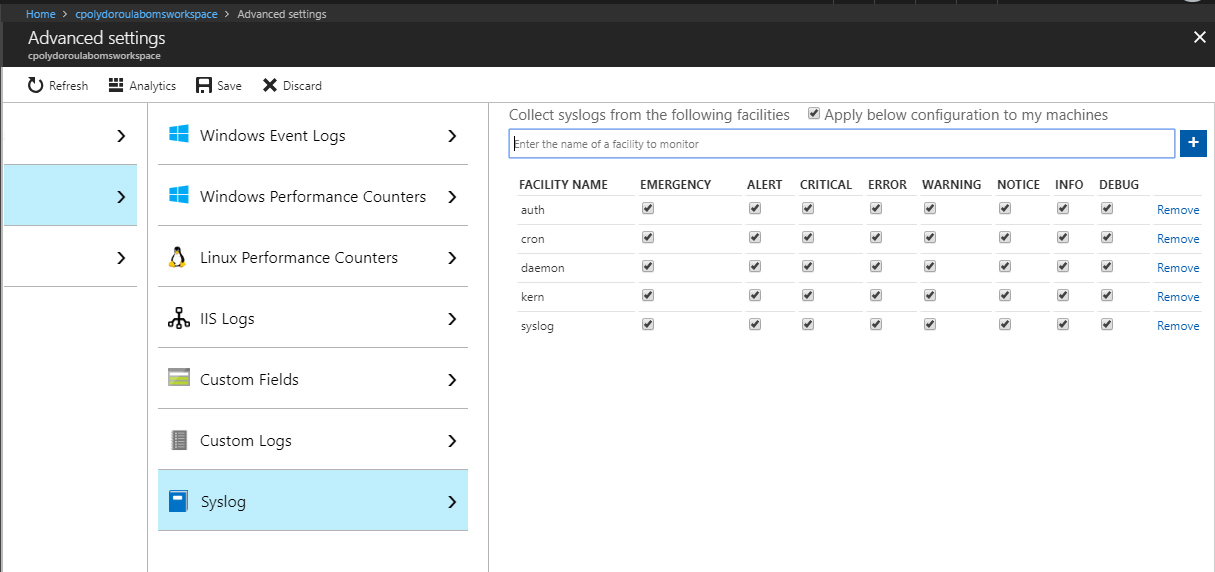
Welcome to another article of the Azure OMS series. This time we are going to configure the OMS workspace for syslog message and linux performance counter collection and then install the OMS agent on a linux machine. Before we start configuring the syslog machines, we have to enable syslog log collection on the OMS Workspace. Go to the "Data" blade of the "Advanced Settings" and select the "Syslog" option. There, you should enable the "Apply below configuration to my machines" option" and then add the syslog facilities to collect messages from. Since we're installing the agent on a linux machine, why not enable the collection of performance counters as well? Go to the "Linux Performance Counters" option of the "Data" blade and enable the "Apply below configuration to my machines" option. Then, add the performance counters to collect. Don't forget to click the save button to save the configura...
Querying OMS for Performance Data

Image
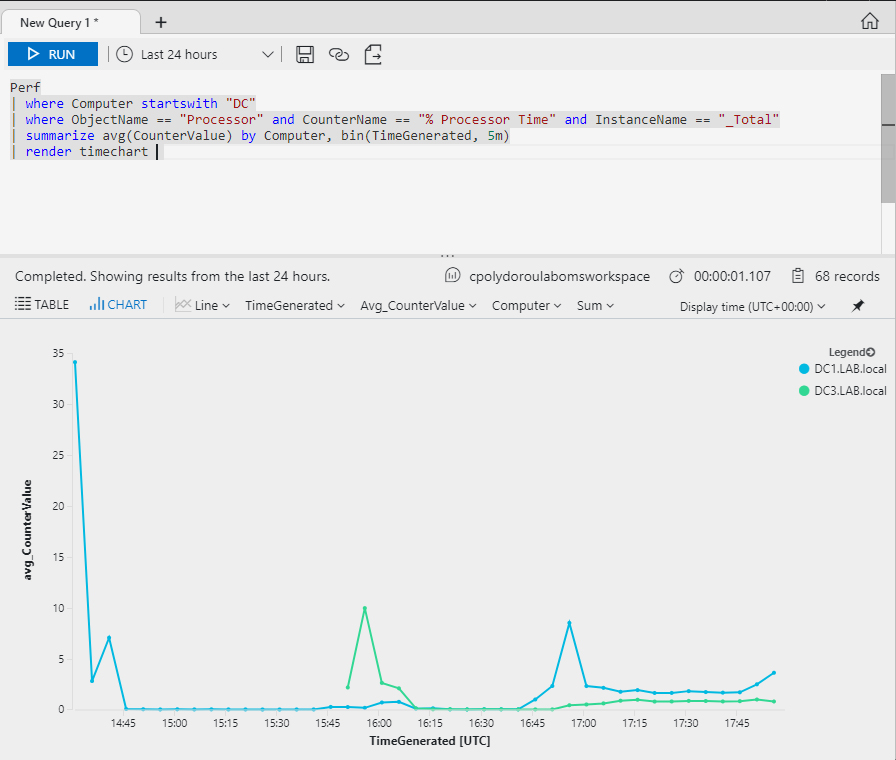
On the previous articles of the OMS series, we configured the workspace and installed the agents on the machines. It's time to start examining the data accumulated on the workspace and create reports, diagrams and alerts. On this article we are going to create diagrams that show the system performance statistics of the servers. Let's start with a query that will display the total CPU utilization. We are querying the performance data produced by servers that their name starts with "DC" in order to get data related to the domain controllers. I would like to take a moment here and focus on the importance of the naming conventions. Having proper names for your machines is very important when in comes to OMS since the computer name is the easiest way to relate the data to the machine. On the third line of the query, we specify that we like to have the data for the "% Processor Time" counter and the "_Total" instance of the "Processor...