Posts

Showing posts with the label IIS

IIS Client Certificate Revocation Check Disable
Image
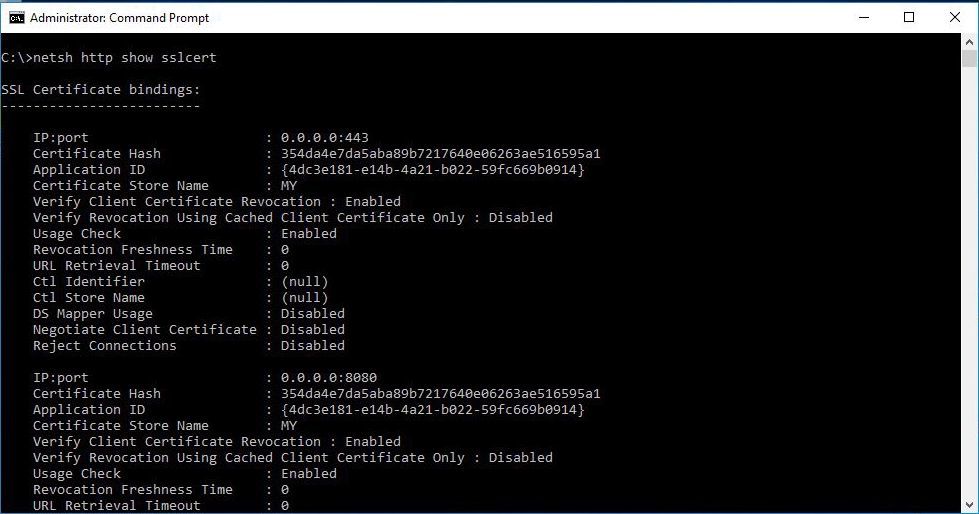
A couple of weeks back, a certificate was approaching it's expiration date on an IIS server and the update - although pretty straight forward, caused a major issue for the service running on that server. I had the new certificate in PFX format, I've installed it on the computer certificate store and it was available in the IIS Manager console. All the certificates for the Root and Intermediate authorities were property installed and the clients had access to the CRL urls. However, when I switched the certificate, the clients were not able to communicate property with the website. After going through the logs on the clients and the application, I discovered that the clients were using client certificates in order to authenticate and the validation process was failing for those certificates since my server could not check their revocation. I opened up a command prompt to get more information on the bindings on the website since there are settings that are not available when...
Collecting IIS log files on OMS

Image
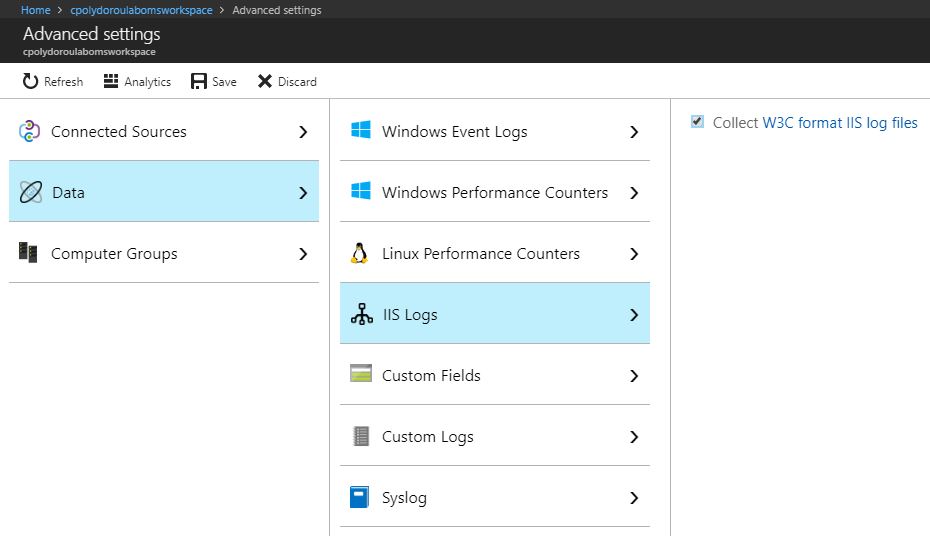
Moving on to the next article about Azure OMS, we'll start collecting IIS log files in order to be able to examine the requests and report on website usage. In order to start collecting IIS logs, we first have to enable the feature on the workspace. Don't forget to click save after enabling the setting. Give it some time and the agents should pickup the change and start uploading the logs. Moving on to the query part, I'm going to use my Exchange servers again, since they have websites that I would like to get statistics for. First, we'll summarize the requests per website: Then, we will extract statistics regarding the user agents used: Finally, we'll extract the number of requests on each Exchange virtual directory: I should mention here that the IIS log files have to be stored in W3C format and custom fields or IIS Advanced Logging are not supported at this time. Have fun! Related articles      Introduction to Azure Advanced Analyti...

Searching IIS logs with Search-IISWebsiteLog

Today I'd like to talk about the Search-IISSiteLog cmdlet that's part of the CPolydorou.IIS module. This cmdlet can be used in order to search text base log files, especially IIS website logs. Let's dive right in and search the Exchange IIS logs for the requests of a specific user! We'll start by getting the sites on an Exchange 2013 server: PS C:\> Get-Website Name             ID State   Physical Path ----             -- -----   ------------- Default Web Site 1  Started %SystemDrive%\inetpub\wwwroot Exchange Back En 2  Started C:\inetpub\wwwroot Since we want to search for a user's requests, we'll use the "Default Web Site" website. Our exchange servers are named "exchange2013a" and "exchange2013b". The Search-IISSiteLog command would be: Search-IISSiteLog -WebSite "Default Web Site" `            ...

The CPolydorou.IIS PowerShell module!

Recently I've published another of my PowerShell modules, this time it's CPolydorou.IIS. This module contains function that have been proven very helpful when I was dealing with IIS web servers and websites. Let's take a quick look on the functions in this module! The first three functions are related to application pools and more particularly getting the application pools, restarting them and getting their worker processes: Get-IISApplicationPool Get the application pools on the local or remote servers. Restart-IISApplicationPool Restart one or more application pools on the local or remote server Get-IISApplicationPoolWorkerProcesses Get the worker process of an application pool The other two functions are: Get-WebConnections Get the connections to a web site Search-IISSiteLog Search the IIS logs (or any other log file in text format) for one or multiple servers in parallel Although there are examples provided in the module help, I will provide more d...

Optimizing IIS server

After searching the web for a while, I found some useful tips for optimizing Microsoft IIS performance. The first thing to do is disable logging for your sites. Since you're interested in performance you have to be on a production server and there's no reason to have logging enabled. One other thing to do is adjust the CPU that every application pool can use. You can even have the server terminate an address pool if it's using to much CPU. You may also set the keep alive limit so you'll have less sessions. I've also excluded the inetsrv directory (located in system32) from antivirus scans. In my occasion there was no need to limit the bandwith for a website since there was no problem with it. You can always speed the server up by improving the overall performance by disabling unused services or excluding application folders from antivirus scans (only when it is absolutely needed, like on MS SQL or Exchange servers).

How to publish multiple WSS 3 sites using ISA 2006

Microsoft IIS allows you to publish multiple sites on the same port (usually 80) using host headers. You can have many different Windows SharePoint Apolications that listen on the same port by just changing the host header. Usually after creating a website with a host header I create a DNS alias with the host header that points to the server that hosts the site. With ISA 2006 you can publish the web application but if you try to publish it using https and the web server uses http you may run into some problems with the Alternate Access Mappings. After you create the Web Listener on the ISA server and publish the web application you have to make sure that the publishing rule forwards the original host header and listens for the specific site. You must also configure the bindings on the IIS and the AAM on the SharePoint site. Go to AAM menu and configure the public URLs for each zone of each site. Most times I set up Default and Internet. Add the correct address for each zone ...