Posts

Showing posts with the label Syslog

Send Syslog Messages from PowerShell

Image
In most cases, the scripts, functions and cmdlets we develop have to save events to a log file to make troubleshooting easier. With PowerShell, the easiest thing would be to write an event to the event log or a file. When it comes to centralized log management, most organizations have based their strategy on the syslog server and protocol. There may be agents on the windows server machines that your code is running on to collect the messsages but that's not always the case. So how can we send messages to a syslog server directly using PowerShell? Although that's not that hard, I've put together a cmdlet to do just that! My General PowerShell module that is published on the Gallery  contains the   Send-SyslogMessage cmdlet from version 2.12.0 onwards. A call to the Send-SyslogMessage would be pretty much like the following: Send - SyslogMessage - Server syslog . lab . local ` - Severity Error ` - Facility Local0 ` ...

Syslog Message Collection for OMS from sources that do not support the agent

Image
On the previous article of the OMS series, we've installed and configured the OMS agent on a linux machine and started collecting syslog messages and performance statistics. Today, we are going to use that machine to collect syslog messages from other machines, devices or applications that are not supported by the OMS agent. This is a two step process, first we are going to enable the remote syslog collection on the linux machine and then we are going to update the configuration of the agent to support high volume of syslog traffic. Let's dive in! The syslog server is going to be rsyslog since it came with Ubuntu server and the configuration file is stored at /etc/rsyslog.conf . To enable the remote collection, the below lines have to be uncommented in the configuration file:     module(load="imudp")     input(type="imudp" port="514") and     module(load="imtcp")     input(type="imtcp" port="514") Since w...

Install and Configure the OMS Linux Agent

Image
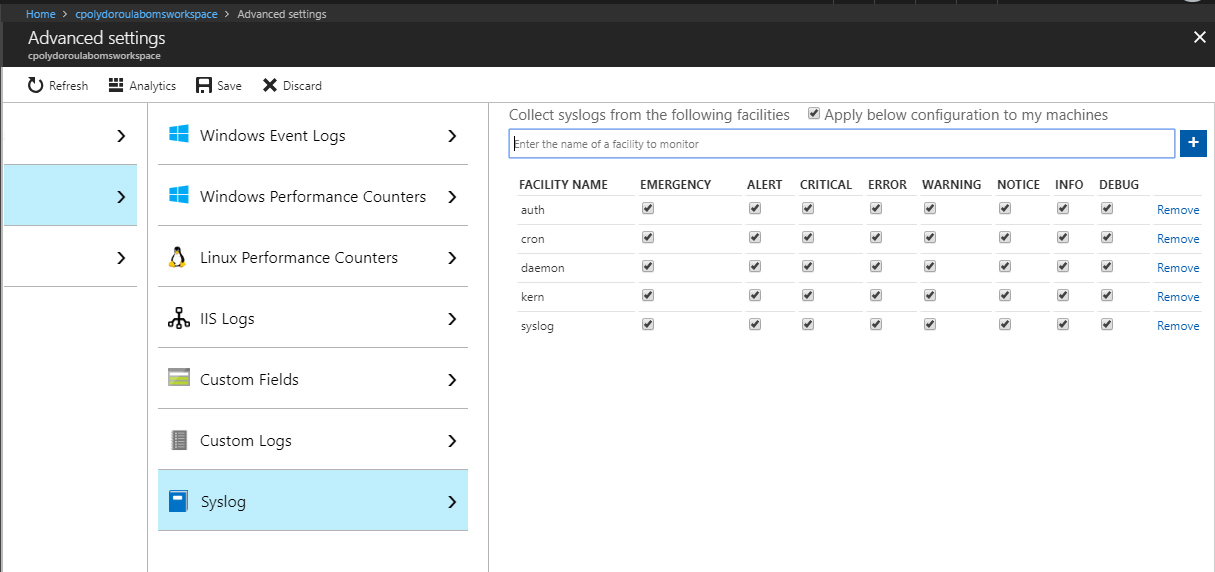
Welcome to another article of the Azure OMS series. This time we are going to configure the OMS workspace for syslog message and linux performance counter collection and then install the OMS agent on a linux machine. Before we start configuring the syslog machines, we have to enable syslog log collection on the OMS Workspace. Go to the "Data" blade of the "Advanced Settings" and select the "Syslog" option. There, you should enable the "Apply below configuration to my machines" option" and then add the syslog facilities to collect messages from. Since we're installing the agent on a linux machine, why not enable the collection of performance counters as well? Go to the "Linux Performance Counters" option of the "Data" blade and enable the "Apply below configuration to my machines" option. Then, add the performance counters to collect. Don't forget to click the save button to save the configura...