Posts

Configuring Virtual Machines Using Desired State Configuration - Part 2 - Local Configuration Manager

Image
In the previous post of the series (available here ) we went through an introduction of Powershell DSC and how it can help with configuring virtual machines. This post is going to be about the Local Configuration Manager, also known as LCM, the engine that is the heart of DSC. When a configuration file is pushed to a node, the LCM is the component that is responsible for performing all the operations in order to bring the system to the desired state. Apart from that, LCM can also monitor the system for configuration drift and take actions in order to remedy it. LCM works with files in the C:\Windows\System32\Configuration directory and there are three of them in particular that you should be aware of: Current.mof . This is the file that contains the current configuration. Previous.mof . This file contains the previous configuration that was applied to the system. Usefull for reverting to a previous state. The following screenshot shows the above files: Pending.mof.  When a configu...

Configuring Virtual Machines Using Desired State Configuration - Part 1 - Introduction

Image
With the ever evolving world of cloud, organizations need to deploy and configure resources faster and in a more controlled manner. Although Azure ARM and other tools like Terraform provide the ability to manage all the resources as code and just submit deployment jobs, we sometimes need a bit more, especially when it comes to virtual machines. Microsoft Desired State Configuration is a technology that helps to approach the guest operating system of virtual machines is a similar manner. So, what is DSC exactly? As per Microsoft Docs,  DSC is a management platform in PowerShell that enables you to manage your IT and development infrastructure with configuration as code. But what does that mean to the everyday consultant or administrator? With DSC, you are able to describe the configuration to be applied to a virtual machine and then the engine will take any steps necessary in order for the machine to reach that state. DSC can also manage configuration drift and not only apply config...

Send Syslog Messages from PowerShell

Image
In most cases, the scripts, functions and cmdlets we develop have to save events to a log file to make troubleshooting easier. With PowerShell, the easiest thing would be to write an event to the event log or a file. When it comes to centralized log management, most organizations have based their strategy on the syslog server and protocol. There may be agents on the windows server machines that your code is running on to collect the messsages but that's not always the case. So how can we send messages to a syslog server directly using PowerShell? Although that's not that hard, I've put together a cmdlet to do just that! My General PowerShell module that is published on the Gallery  contains the   Send-SyslogMessage cmdlet from version 2.12.0 onwards. A call to the Send-SyslogMessage would be pretty much like the following: Send - SyslogMessage - Server syslog . lab . local ` - Severity Error ` - Facility Local0 ` ...

Office 365 Endpoint IP Address and URL Service

In the era of the cloud, service releases and changes are nearly constant. Microsoft Office 365 could not be an exception, especially with the large and increasing number of services and millions of users. But some of those changes and releases sometimes cause issues with on-premises infrastructure that is not property configured. Today I am going to focus on the networking side of things and talk about allowing access to Office 365 services from firewall and proxy servers. The first thing you'll need to permit access to Office 365 services from your on-premises machines is to know the service endpoints and by endpoints I mean IP addresses and URLs. Fortunatelly, this information is available from Microsoft in this   article so the only thing you'll have to do is read through it, get the information for the services you're using and configure your proxy server and firewall. That's easy, what happens though when that information is updated? This is where the problems sta...

Active Directory Domain Join Delegation

Image
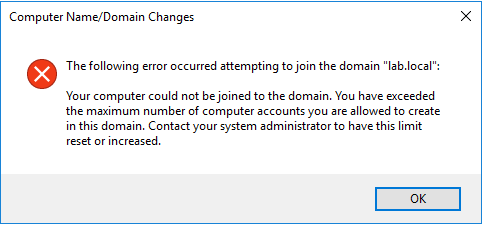
The trigger to write this article was a troubleshooting session with a client that had built an automation process to deploy Windows Server and RedHat Enterprise Linux virtual machines on Azure. One of the steps of the provisioning process was to join the machine to the IaaS Active Directory Domain that was deployed on Azure and for this, an Active Directory account was required. Following the least previlege principle, the account used in the automation processes to join machines to the domain was a plain account that could indeed perform this operation. After some successfull joins however, the process started encountering errors when trying to join machines to the domain. As it turns out, the architects and security engineers had missed the fact that plain Active Directory accounts have the ability to only join a specific number of machines to the domain. When the automation reached that number, the process started to fail. To further troubleshoot the issue, we tried to join t...

Azure Instance Metadata Service

Image
The Azure Instance Metadata service is an Azure service that provides more information about Azure Virtual Machines that is invoked from the machine itself. This way, the administrators of the machine - that in most cases have no access to the Azure Portal - are able to get more information and troubleshoot potential issues. Let's use a linux virtual machine to get information from the metadata service! To get the data from the service, a simple HTTP call is all that is required. However, there are a couple of things to keep in mind. First, although we are using Automatic Private IP Addressing, we have to include the "Metadata" header so that the service won't mistake our call for a call that may be the result of a redirection. Second, the version of the API to use must be provided in every request. To get the allowed values, simply call the service without the "api-version" parameter and it should return a list of values: curl -H Metadata:true ...

Using Azure Data Lake to Archive, Audit and Analyse Log Files

Image
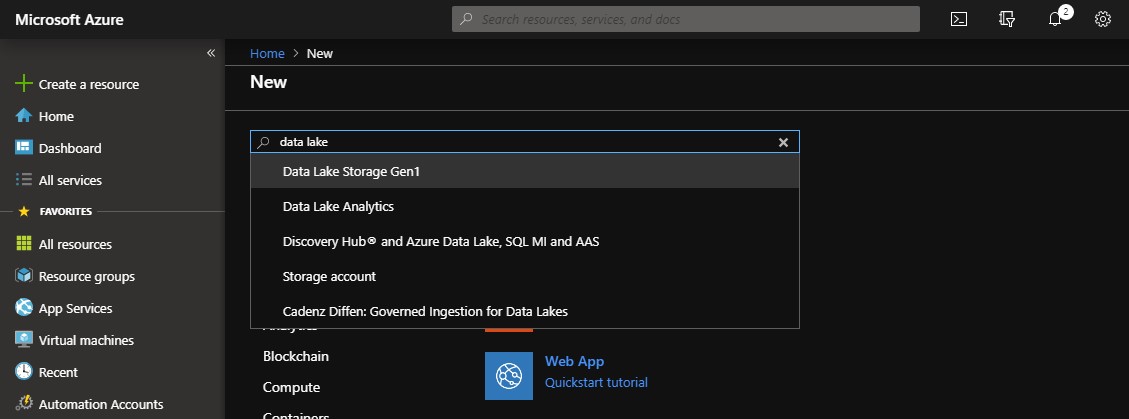
When operating relatively big and complex environments, the ability to have all the operational information available as quick as possible is one of the key factors that protect you from downtime and breached SLAs and allow you to have a full view on the environment to act proactively. There are many cloud and on premises solutions that can be of assistance but there are some cases that require a more customized approach. Don't get me wrong, Azure OMS and other solutions like it are great for maintaining the control and reporting on your services. However, there are some organizations with needs that cannot be covered by OMS, such as really long retention periods, log file formats that cannot be directly parsed, etc. So what we need is a place to store the files and a very fast way to query them. This is where Azure Data Lake comes into play. Uploading your log files to Azure Data Lake or directly feeding the Data Lake using Azure Stream Analytics will give you the ability...