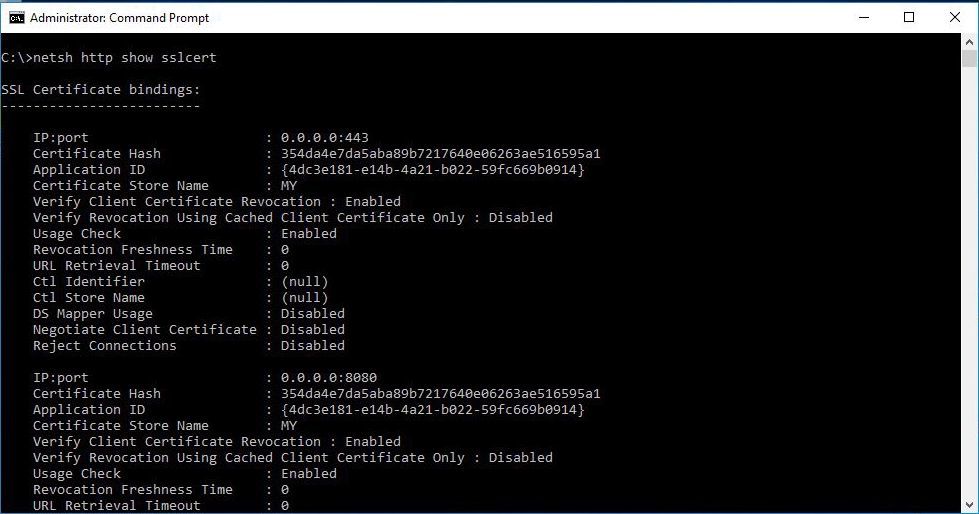
A couple of weeks back, a certificate was approaching it's expiration date on an IIS server and the update - although pretty straight forward, caused a major issue for the service running on that server. I had the new certificate in PFX format, I've installed it on the computer certificate store and it was available in the IIS Manager console. All the certificates for the Root and Intermediate authorities were property installed and the clients had access to the CRL urls. However, when I switched the certificate, the clients were not able to communicate property with the website. After going through the logs on the clients and the application, I discovered that the clients were using client certificates in order to authenticate and the validation process was failing for those certificates since my server could not check their revocation. I opened up a command prompt to get more information on the bindings on the website since there are settings that are not available when...