Posts

Getting Exchange Server Recipients from Active Directory

I run into a strange issue today where I had to get a list of all the users that had a mailbox without having access to any Exchange servers. It was crucial that the list did not contain any MailUsers or MailContacts since those objects are managed using Microsoft Identity Manager (MIM). Since I could not access any Exchange servers, the use of the Get-Mailbox cmdlet was out of the question. I had to go to the source, the Active Directory. Exchange depends heavily on Active Directory and that was the place I would find the information I needed. So, I fired up Powershell ISE and loaded the activedirectory module. In order to filter the objects, we are going to use the msExchRecipientTypeDetails attribute. The values of this attribute represent the different Exchange Recipient Types. You can find more details about the values here: https://blogs.technet.microsoft.com/dkegg/2014/05/09/msexchrecipienttypedetails/ Since I only want the users with a mailbox, I am going to use the G...

Windows Server 2012 R2 Core Setup Part 3

This is the third and final article of the series, following the  Windows Server 2012 R2 Core Setup Part 2,  where we will update the server with the latest updates. In many Windows Server Core installations, I've seen people use Corefig, a very easy and handy utility to configure many things on a core server. I'm not going to demonstrate that though because this is a Powershell only guide! Instead we are going to use a Powershell module for Windows Update named PSWindowsUpdate. After you download the file, unblock it using: UnBlock -File -Path .\PSWindowsUpdate.zip and extract the contents. When the extraction is finished, import the module using: Import-Module .\PSWindowsUpdate Use the path to the module's top level directory, that is the directory that contains all the files in order to import it. Now that we have the PSWindowsUpdate module installed, we will focus on two of the commands, Get-WUList and Get-WUInstall The first one wil...

Windows Server 2012 R2 Core Setup Part 2

Let's continue the Windows Server Core setup from where we left it in the previous article of the series! We will start by enabling the Remote Desktop firewall rules so you can connect to the server remotely: Enable-NetFirewallRule -DisplayGroup "Remote Desktop" Next, it's time to allow access to administrative file shares like c$ using: Enable-NetFirewallRule -DisplayGroup "File and Printer Sharing" Some monitoring systems use ping to test if a system is up, in that case we have to allow it through the firewall: Get-NetFirewallRule -Name FPS-ICMP4-* | Enable-NetFirewallRule Those rules are part of the File and Printer Sharing group and will be enabled if you enable the group. Now that we have allowed the Remote Desktop connections through the firewall, it's time to check if Remote Desktop is enabled and if not, enable it. First, we will use the following command to check if Remote Desktop is enabled: ( Get-ItemPro...

Windows Server 2012 R2 Core Setup

In this article I will show you the commands I usually use in order to configure a newly set up Windows Server 2012 R2 system. I know there are may other ways to do this like sconfig or corefig but I prefer native Powershell command. Let's start by renaming the computer with the command below: Rename-Computer -NewName Server1 A small note here, the name of the computer will not change until you reboot. If you want to reboot right after the cmdlet above completes just add the -Restart parameter. Next, I'm going to set the product key: slmgr -ipk productkeystring After the step above I like to configure the network settings. Let's start with renaming the network adapters. That way it is easier to tell which adapter is connected to which network: Rename-NetAdapter -NewName LAB_Data After renaming the adapters, it's time to assign some IP addresses! New-NetIPAddress -IPAddress 10.0.0.12 ` -InterfaceAlias LAB_Data ` -DefaultGateway 10.0.0.1 ` ...

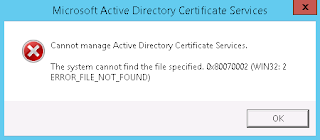
Active Directory Certificate Services Installation Error

Image
I got a call today from a friend that had a strange issue when opening the Certification Authority mmc snap-in. When tried to open the certification authority he got the following message: Although this seems very serious, it is nothing other that expected. As it turns out, he was setting up a lab and part of the lab was testing the certificate services. After adding the role and features though, you have to finish the configuration. Right click on the yellow triangle on the top right of the Server Manager to get the respective prompt. After the configuration is complete, the MMC snap-in is working as expected.

IPFire Network Interface Not Found

Today I'd like to talk about IPFire and a problem I had recently with the network cards. IPFire is my favourite lightweight firewall distribution. It's easy to setup and configure which, in my opinion, makes it perfect for labs and POCs. I have a lab environment set up on my Windows 10 computer with multiple virtual networks and virtual machines. I have setup a virtual network with Active Directory domain controllers acting as DCHP and DNS servers, several test servers and workstations. I have even joined an Ubuntu Server to this Active Directory Domain. All these in a private virtual network... So I had to make internet connection available to those machines. I created a new virtual machine and installed IPFire. I added three virtual network adapters to the virtual machine - one connected to my LAN and the other two connected to two private virtual networks. After a little bit of configuration, my virtual machines could access the internet through the IPFire virtual m...

Microsoft Exchange Distribution Group Permission Error

Image
So, you're an Exchange administrator and you have been assigned the task to add multiple recipients to distribution lists. You fire up Powershell, load the Exchange snap-ins and after you have your recipients ready you start adding them to the groups. If a group has managers configured and you're not a manager of the group, the Add-DistributionGroupMember  or  Remove-DistributionGroupMember cmdlets will fail with an OperationRequiresGroupManager exception just like this one: The solution to this is very simple, you have to add the -BypassSecurityGroupManagerCheck  switch to your command. When adding or removing many members I always use this switch cause I do not want to get an error and end up with users being added to some groups just for this reason. Never the less, you can always use Try-Catch to handle the exception or check if the group has managers if you do not want to bypass this check for all groups. You may find more information re...